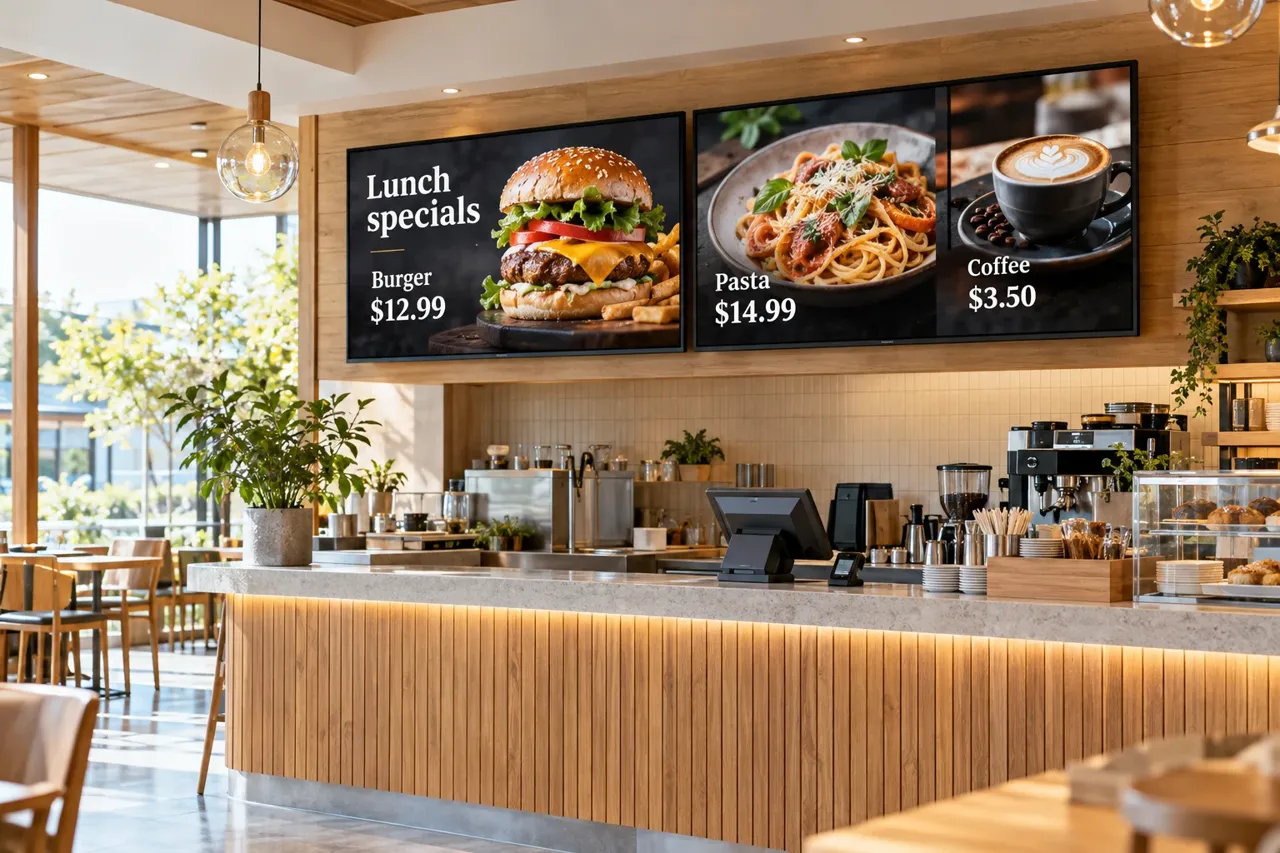
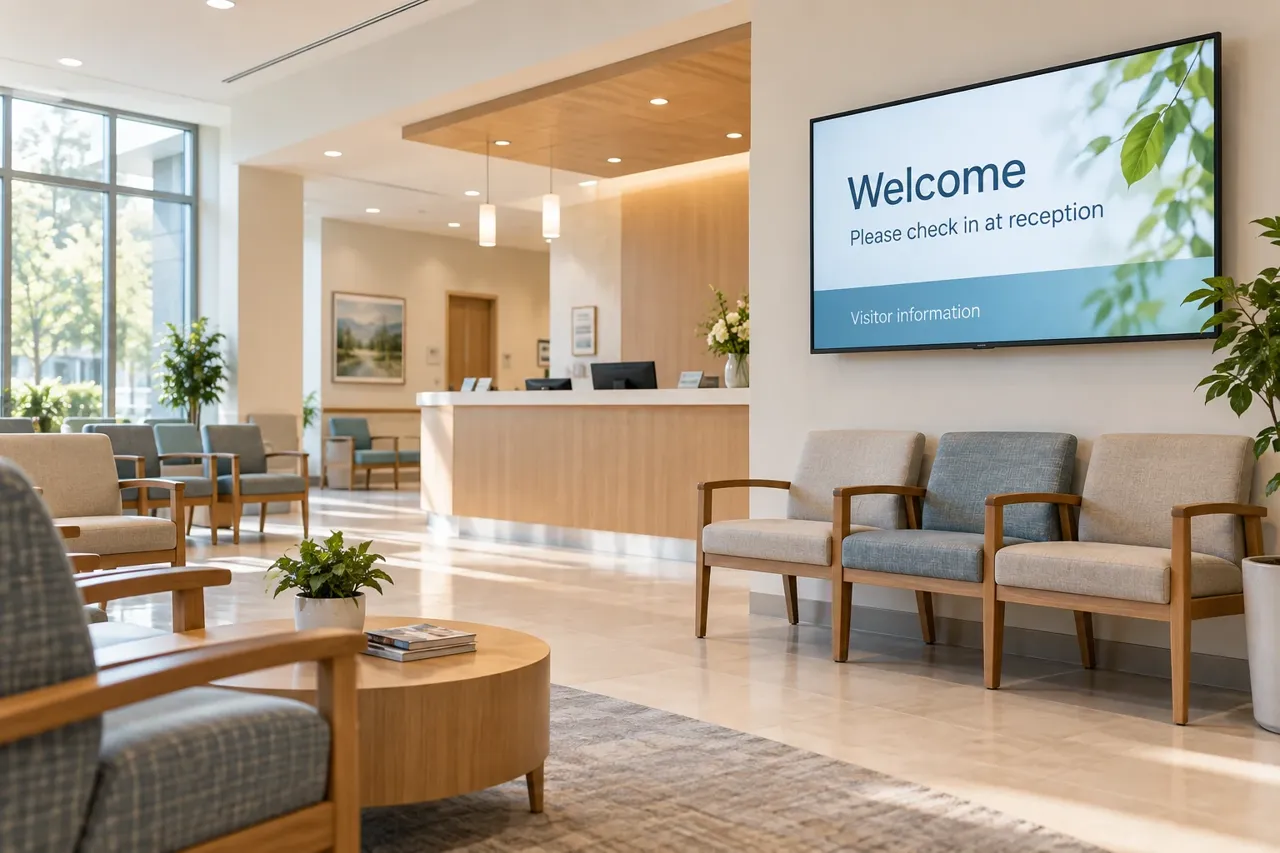
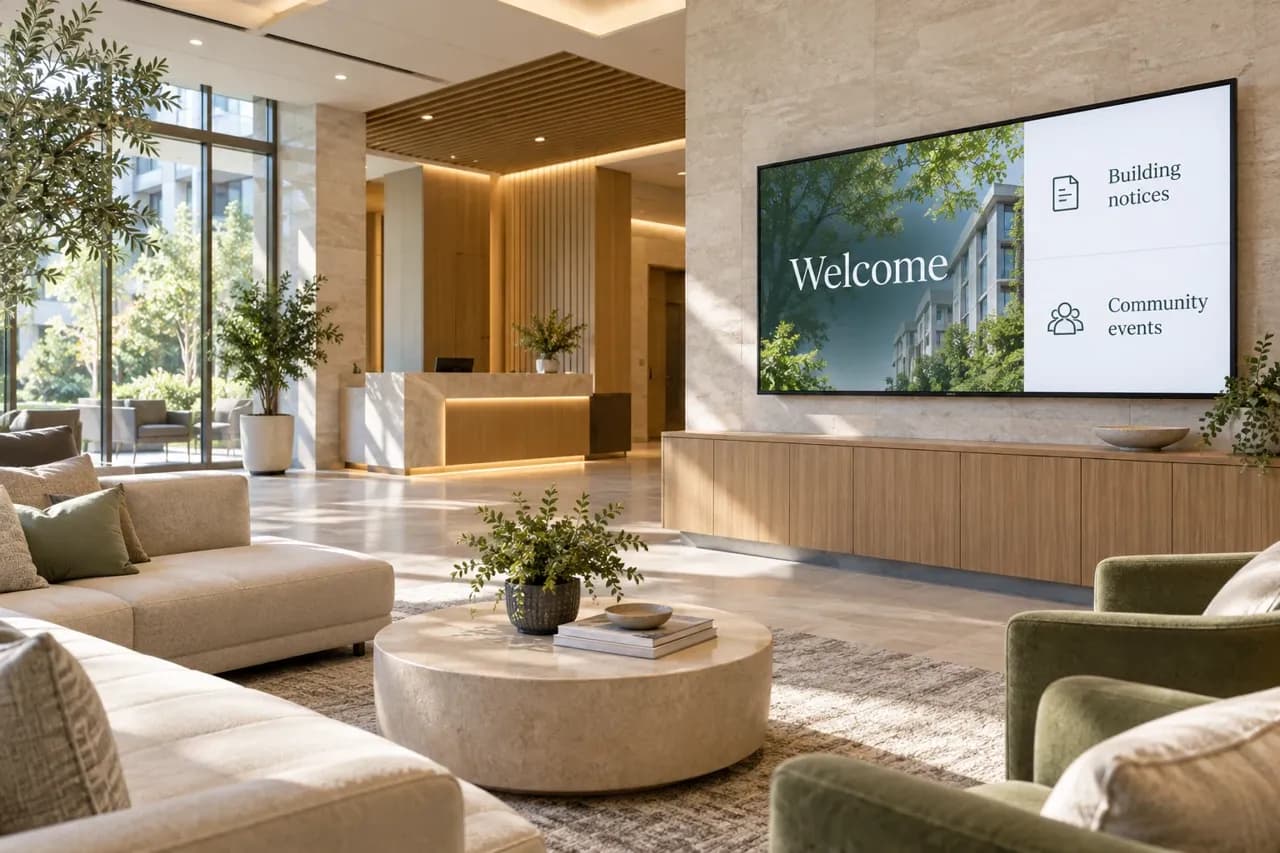
Serve up an irresistible menu. Welcome a visitor. Share what matters. Turn your TVs into displays that work for your business—all managed from one place.
Your menu changes. Your notices change. Keep your screens in step with your business through bITsMenu Control.
01
Images, video & playlists
Bring together food photography, promotional videos and announcements. Choose the order and image duration, then assign a playlist to each screen.
02
Content on your schedule
Set a start date and time for a playlist, with an optional end date. Plan a limited promotion or let a playlist continue until you choose its replacement.
03
Active dashboards
Combine information blocks such as weather, clocks, exchange rates, messages and video in a dashboard. Arrange the layout for the information your audience needs.
04
A screen for every space
Prepare landscape or portrait content and adjust screen orientation remotely. Use a menu above the counter or a welcome display near the entrance.
05
One place to manage it
See your connected displays, give each one a useful name and select its playlist from Control. Update content from your computer without visiting each TV.
06
Your business, your content
Activate displays within your company account. Keep your screens and playlists organized separately from other businesses.
FROM CONTENT TO SCREEN
A simple path to your first display.
1
Connect your TV
Install the app on a compatible Android / Google TV, or connect a bITsMenu player to an HDMI TV. Activate the screen in your company account.
2
Build your playlist
Upload images and videos, arrange your content and choose a layout that fits the screen. Start with the message your audience needs most.
3
Publish & keep it fresh
Assign the playlist to your display. Change the content remotely, plan its start and end dates, and check your connected screens from Control.
ANDROID TV & GOOGLE TV INSTALLATION
Get bITsMenu on your TV.
Use this guide for a compatible TV running Android TV or Google TV. Have your TV remote, an internet connection and your company Control account ready.
The TV app is installed from a signed Android APK. Use bitsmenu.online/apk to download the latest active Android release. This address stays the same when a new version is published. Contact support if you need help checking your TV’s compatibility.
1
Connect & prepare
Connect the TV to Wi-Fi or Ethernet. On your computer or phone, create or sign in to your company account in bITsMenu Control. Download the current signed APK at bitsmenu.online/apk.
2
Install the TV app
Choose the download or USB method below. Open the APK, approve the installation prompt and select Install. When complete, open bITsMenu Player from the TV’s Apps list.
3
Activate your display
Note the six-character code on the TV. In Control, open Displays → Activate a new device. Choose Display for an app installed directly on the TV, enter the code, give the TV a name, choose its orientation and select Activate Display.
DOWNLOAD / NO USB REQUIRED
Install directly on the TV
Install a TV-compatible downloader, such as Downloader by AFTVnews if available in your TV’s app store. Enter bitsmenu.online/apk to download the latest Android APK. Download the file and open it to start installation.
If prompted, allow that downloader to install unknown apps in the TV’s settings. Return to the downloaded APK and select Install. Permission menus differ by TV model; enable permission only for the app you use for installation.
USB ALTERNATIVE
Transfer the APK from a computer
Download the signed APK from bitsmenu.online/apk, copy it to a USB drive and insert it into an accessible USB port on the TV. Use a TV-compatible file manager to open the file. If prompted, allow that file manager to install unknown apps, then select Install.
Use this method only when your TV supports USB file access. You can turn the installation permission off after setup.
YOUR FIRST PLAYLIST
Put your content on screen
In Control, open Playlists, create a playlist and upload your images or MP4 videos. Return to Displays and select that playlist for the activated TV. Keep the TV online while its content downloads, then confirm playback on the screen.
For an external Android hardware player, select Player during activation. Amazon Vega devices use a separate package and setup.
Look under Settings → Apps → Special app access → Install unknown apps, or Settings → Security & restrictions → Unknown sources. The names and location vary by manufacturer and software version. If the menu is unavailable, contact support with your TV model.
The installer says “App not installed”.
Check available storage and confirm the package is intended for Android TV / Google TV. For an existing installation, request a compatible signed update. Keep the current app installed so its activation is preserved; contact support if the update is rejected.
The code does not activate or the screen is blank.
Check the TV’s internet connection, reopen the app and use the code currently shown. Enter all six characters in the intended company account. After activation, confirm a playlist is assigned and contains media, then allow time for it to download.
How do I keep the display running?
Review the TV’s sleep timer, automatic power-off and energy-saving settings for your signage hours. Keep bITsMenu Player open. These controls vary by TV model; verify playback after setup and after a TV restart.
STRAIGHTFORWARD PRICING
Start small. Grow screen by screen.
Try the software for 15 days. Then use the same monthly pricing whether your setup uses compatible TVs or external players.
MONTHLY SUBSCRIPTION
$50/ company / month
+ $10 per active screen / month
Includes your company Control account to manage displays, content and playlists.
Usually, you can use a TV you already have. Compatible Android TV and Google TV models can run the display app. Other TVs need an available HDMI input and a bITsMenu player. Contact us with your TV model before choosing the setup.
What can I put on the screen?
Menus, product photos, MP4 videos, specials, welcome messages, building notices and supported dashboard information. You supply the content and decide what each screen shows.
Can different TVs show different content?
Yes. Assign a playlist to each display. A restaurant can show its menu at the counter and a promotional playlist in the dining room, managed through the same company account.
Can I schedule a promotion?
Yes. Choose when a playlist begins and, if needed, when it ends. Leaving the end date blank lets it continue until another playlist is selected or scheduled.
Does it need an internet connection?
Internet is needed for activation, remote updates and live dashboard data. The Android player can continue displaying media already downloaded to its cache during a connection interruption. Live information and new content need the connection to return; behavior varies by player.
What is included in the free trial?
New company accounts receive a 15-day software trial, with no card required to start. The player equipment, when needed, is a separate one-time purchase. After the trial, the monthly subscription is $50 per company plus $10 per active screen.
Can it show hospital or clinic information?
Yes, for general content such as welcome messages, visiting hours, directions and information approved by your team. The examples here use public-facing content. Patient records, medical-system integrations and clinical queue connections are not included in the standard signage setup.
Can you help us get started?
Email support@bitsmenu.online with your business type, TV models and number of screens. We can help identify the appropriate display or player setup and discuss the content you want to present.
LET’S PUT YOUR MESSAGE ON SCREEN
See your business in a whole new light.
Start your free trial, or tell us about your space and the screens you want to use.